Review and approve leave, handle attendance corrections, and keep a full audit trail - all from one place.
The Admin Panel gives you complete oversight of leave across your company. From here you can review every leave request, approve pending ones, correct attendance issues, view leave trends, and track every balance change.
All Leave Requests
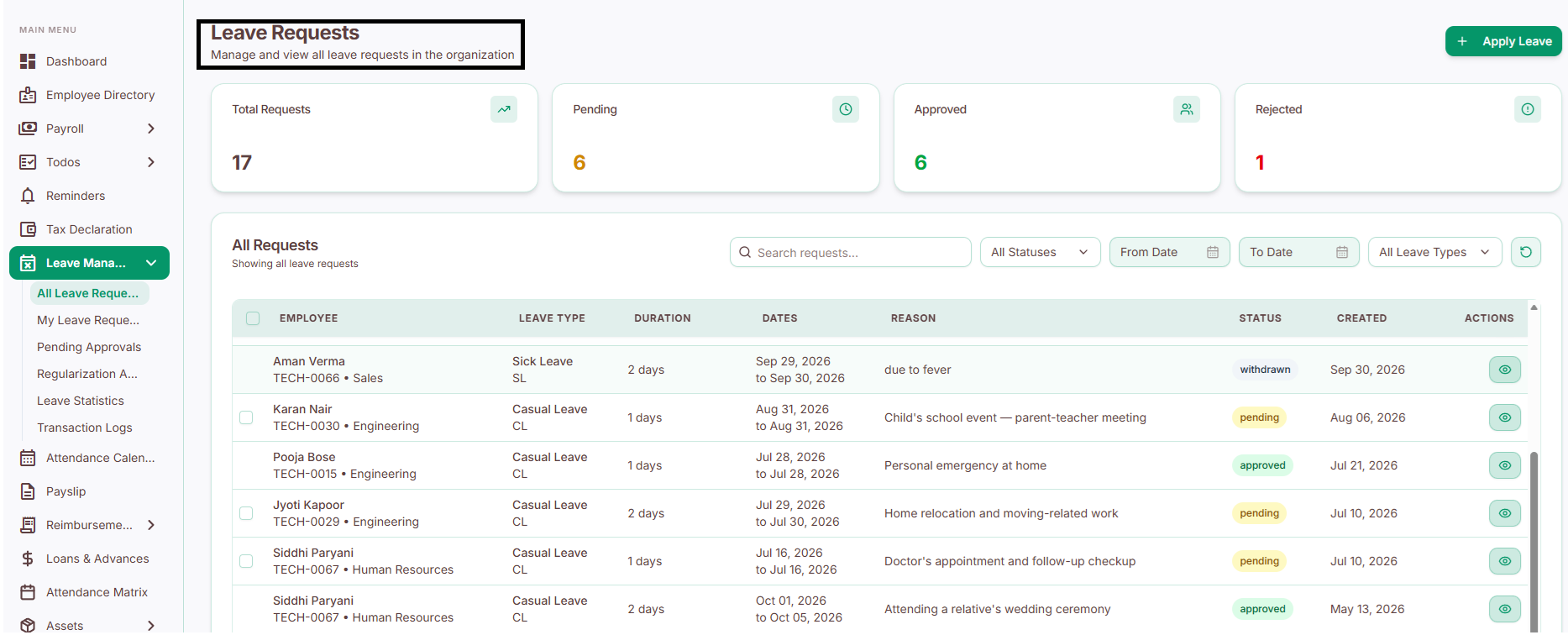
See every leave request ever submitted - Pending, Approved, and Rejected.
Click the View (👁) icon next to any request to see:
Employee Information - name, employee ID, department, leave type
Leave Details - leave period, duration, applied date, reason, current status
Leave Balance - balance before and after, days requested, carry-forward details
Approval Workflow - who reviewed (or needs to review) this request
From here, you can
Approve or Reject: Approve or reject individual leave requests directly.
Bulk Approval or Rejection: Select multiple employees' leave requests, or select all requests, to approve or reject them in bulk.
My Leave Requests
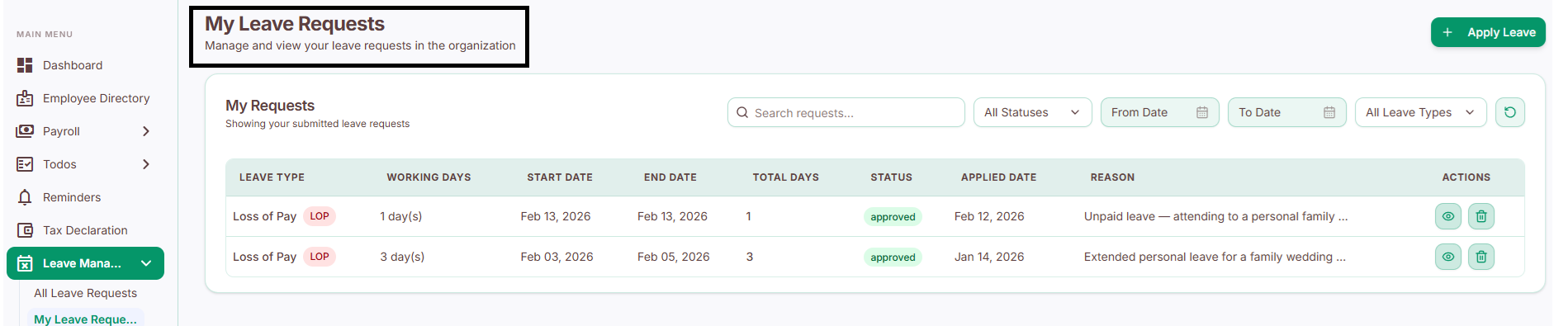
View and manage your own leave applications here, separately from the requests you review for others.
Pending Approvals
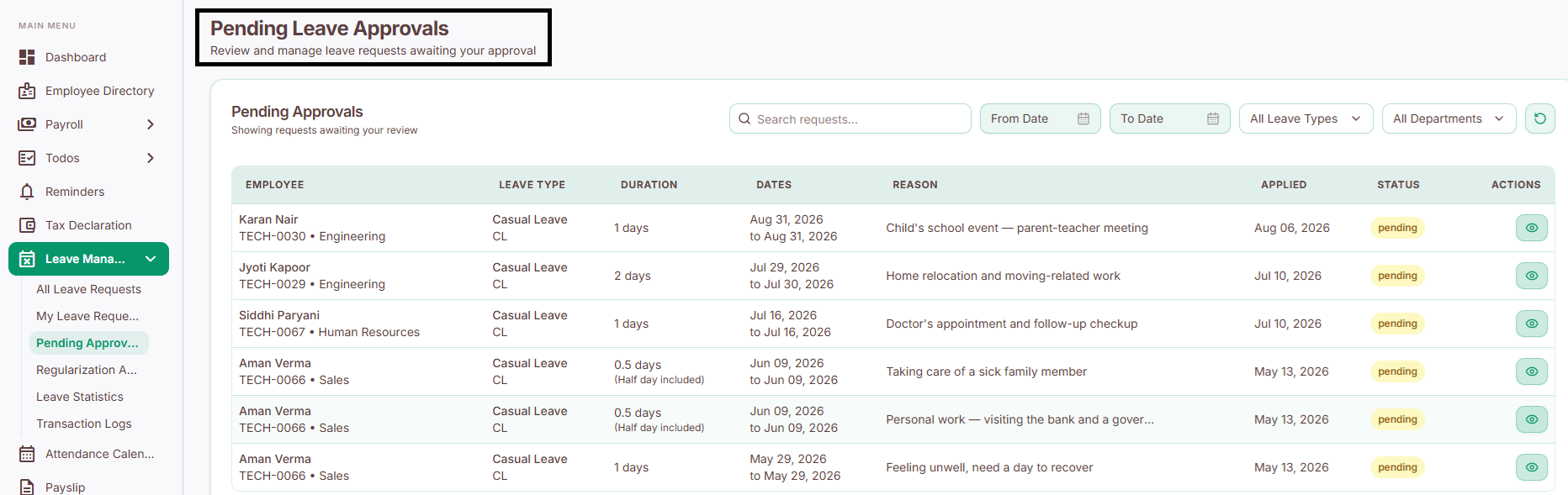
While All Leave Requests shows everything, this section shows only what's currently waiting on your action - requests from employees without a reporting manager, or where the manager hasn't responded yet.
From here you can:
Review the request details
Approve or reject it
Keep all pending items in one place, instead of searching through the full list
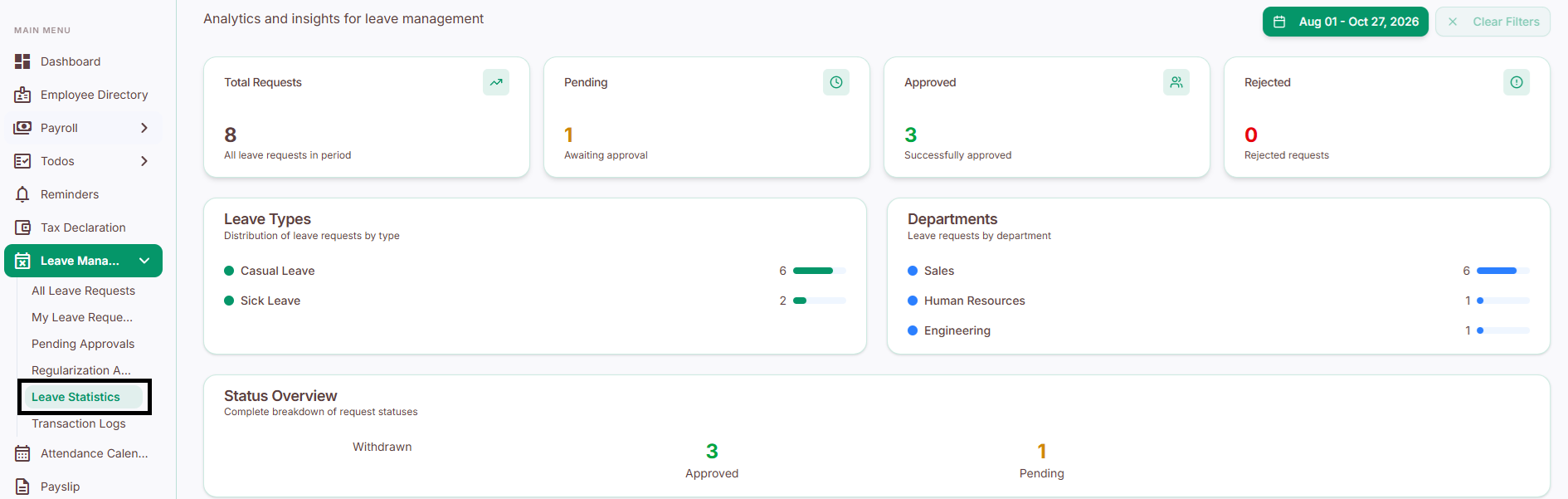
Leave Statistics
A summarized view of leave usage across the company - useful for spotting trends, monitoring how much leave is being used, and planning ahead for staffing.
Transaction Logs
A full history of every leave-related change - credits, deductions, approvals, rejections, manual adjustments, and balance updates. This is your audit trail if you ever need to explain "why does this employee's balance look like this?"
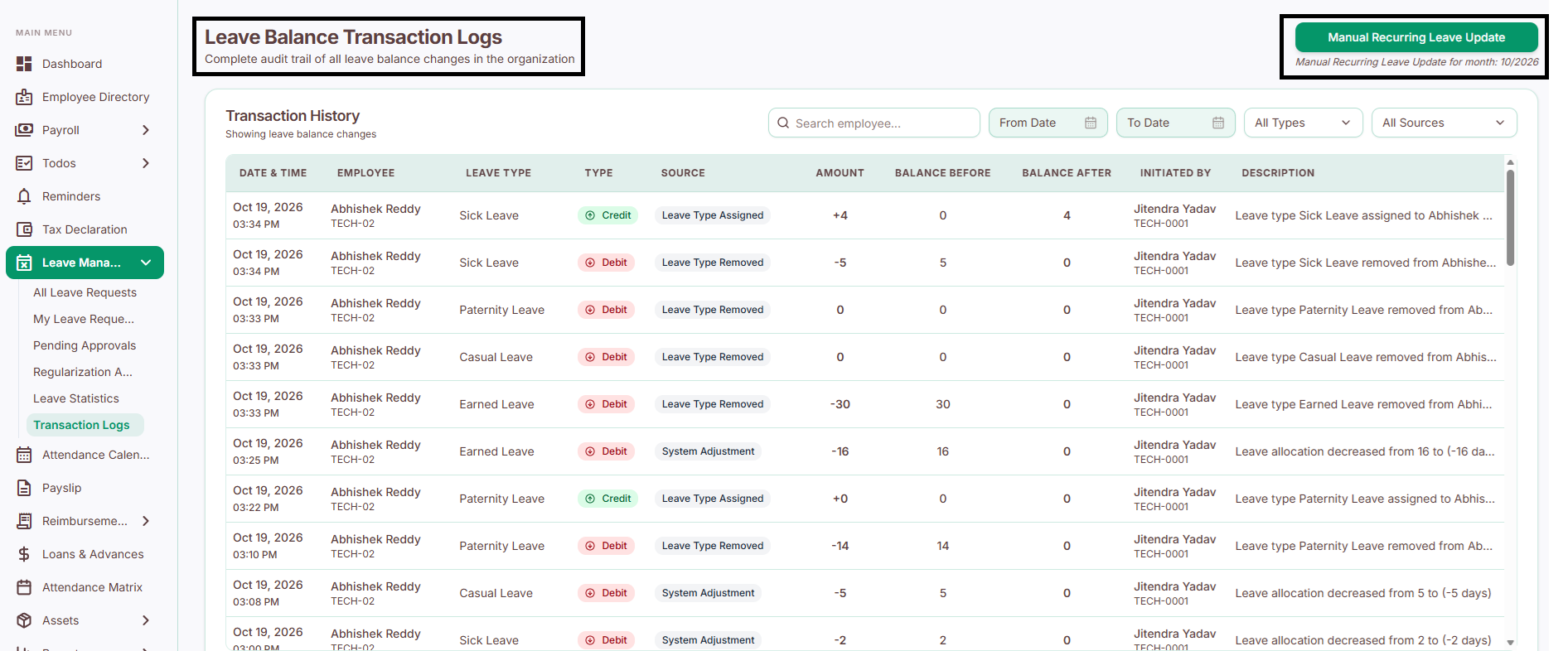
Manual Recurring Leave Update
Normally, leave credits happen automatically each month. Use this option to manually trigger that process - useful if the automatic credit didn't run, a policy changed mid-month, a new employee joined after the usual cycle, or a balance needs correcting.
How to run a manual update
Go to Manual Recurring Leave Update.
Select the employee(s) or leave policy you want to process.
Review the details.
Click Run Update (confirm this is the actual button label).
What happens after you run it
Eligible employees get their leave credited, based on their configured policy
Their leave balance updates automatically
A new entry is recorded in Transaction Logs, including:
Leave Type
Credit Type
Source (Manual Credit / System Adjustment)
Balance Before / Balance After
Leave Credit Amount
Initiated By (Admin/System)
This keeps a complete, traceable record of every balance change.