
Configure your leave types, policies, and approval rules here - once set up, everything runs automatically.
Leave Types
Create the leave categories your company offers - Casual Leave, Sick Leave, Earned Leave, Comp-Off, Work From Home, Special Leave, or any custom type you need.
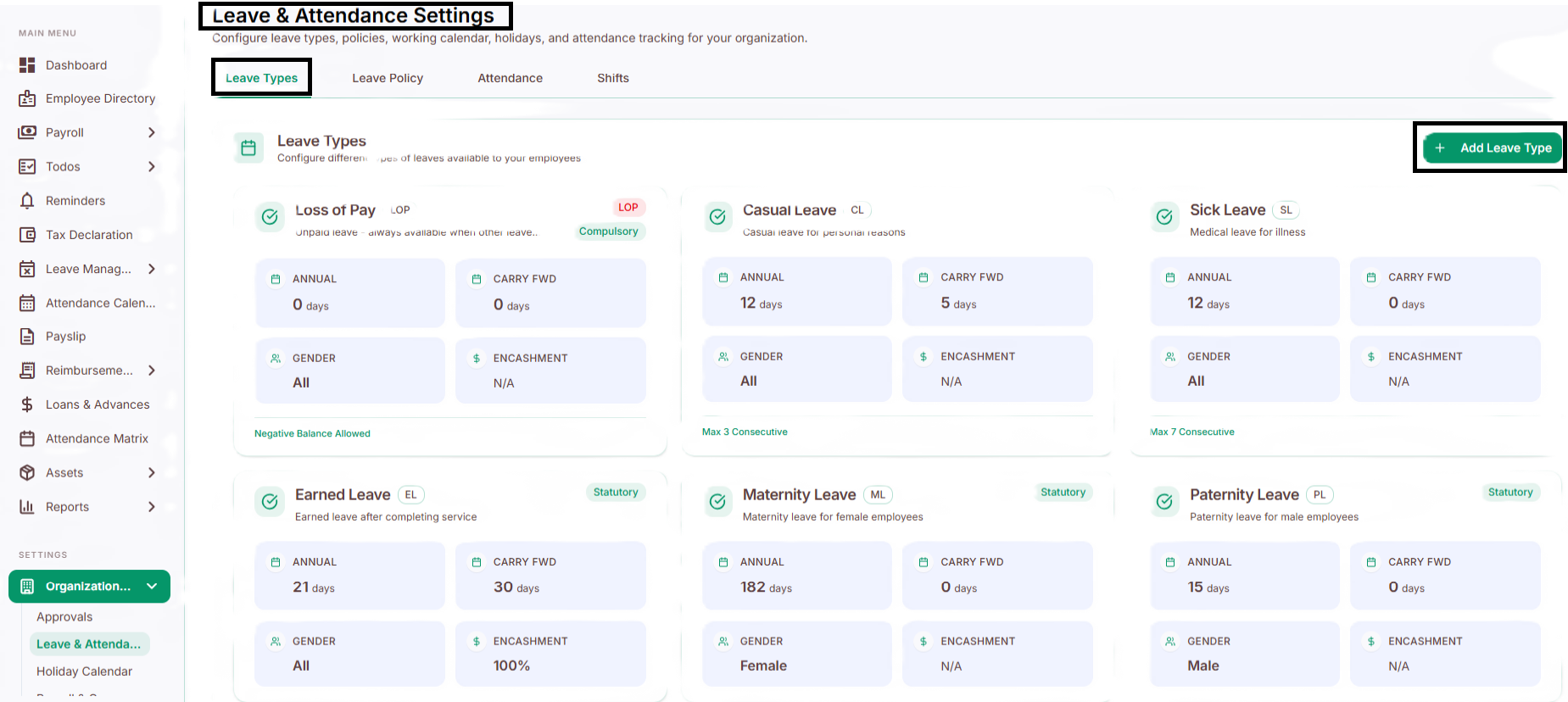
How to Add a Leave Type
Log in to the Admin Panel.
Go to Organization Settings → Leave & Attendance.
Click + Add Leave Type.
Fill in the details (see below).
Click Save.
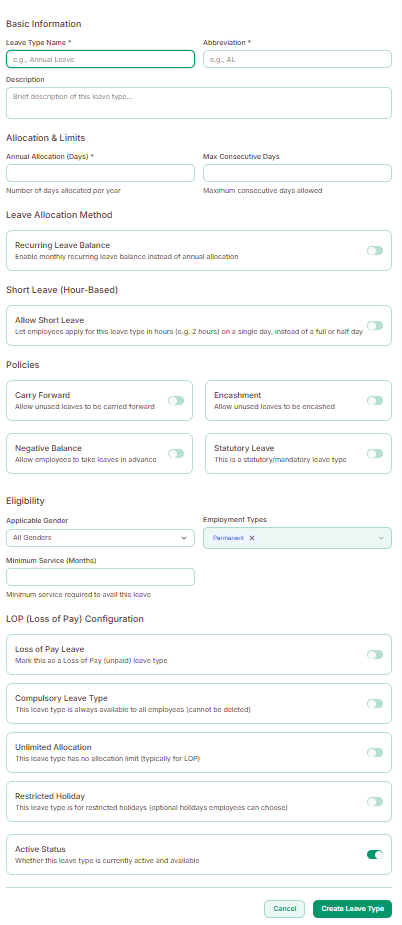
What you can configure for each leave type
Basic Information - the leave's name and short code (e.g., "Casual Leave" / "CL")
Allocation & Limits - how many days per year, and the maximum consecutive days someone can take at once
Leave Allocation Method - credit leave all at once each year, or a little each month
Leave Policies - turn on/off:
Carry Forward - unused leave rolls over to next year
Encashment - unused leave can be converted to money
Negative Balance - allow employees to go into "negative" leave (borrow against future leave)
Statutory Leave - leave required by law, handled with specific compliance rules
Eligibility - restrict by gender or minimum time worked at the company (e.g., only after 6 months)
Loss of Pay (LOP) Settings - configure unpaid leave, leave types with no fixed limit, compulsory leave, and restricted holidays
Status - turn a leave type on or off without deleting it
Leave Policies
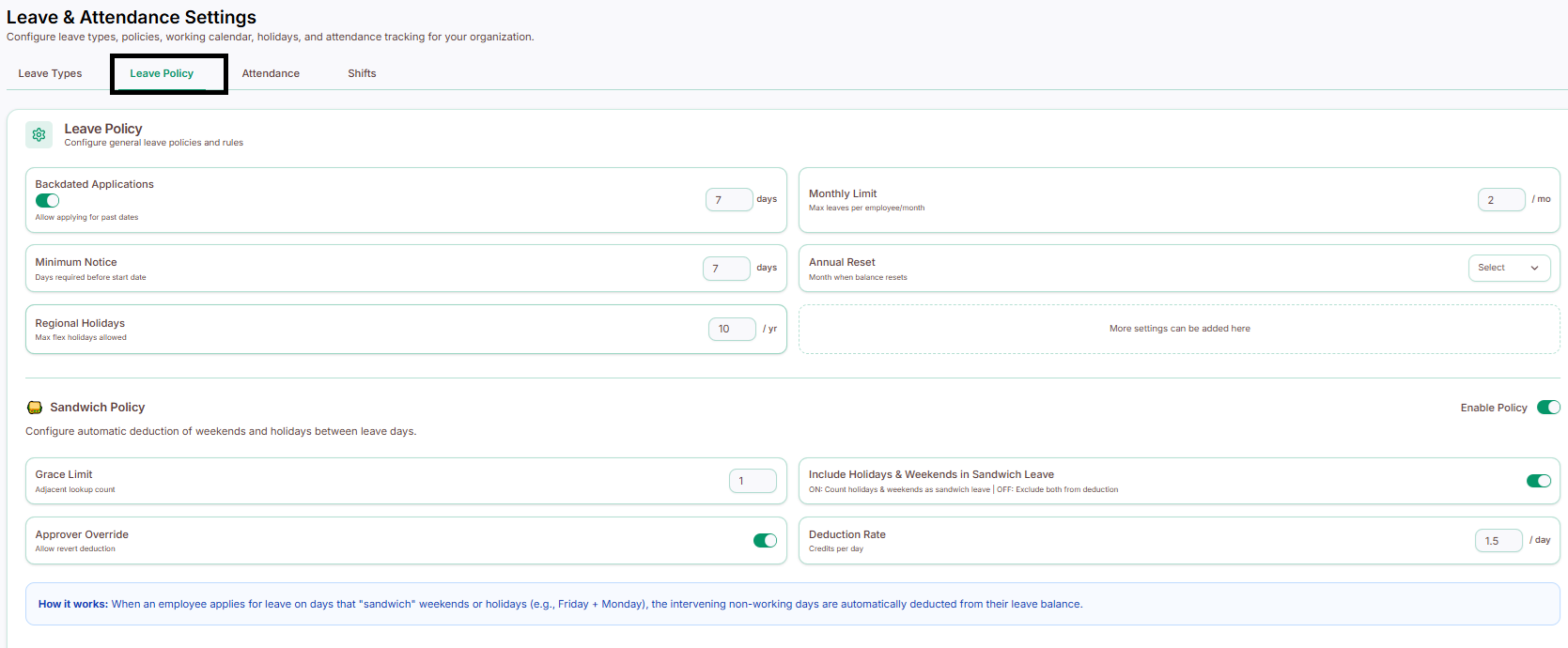
These control how leave requests behave across the board - not tied to one specific leave type.
Backdated Leave - allow employees to apply for leave for dates that already passed
Monthly Leave Limit - cap how much leave someone can take in a single month
Minimum Notice Period - require leave to be applied for a set number of days in advance
Annual Reset - reset leave balances at the start of the calendar year or financial year
Regional Holidays - assign different holiday calendars based on employee location
Sandwich Policy - if an employee takes leave on both sides of a weekend/holiday, count the days in between as leave too
Grace Limit - how many extra days next to a leave are considered under the Sandwich Policy
Include Holidays & Count All Days - decide whether weekends/holidays count toward the leave being taken
Approver Override - let an approver bypass policy restrictions in special cases
Consecutive Leave Check - checks if leave requests span across weekends/holidays, to apply rules correctly
Deduction Rate - how much leave balance is deducted per day taken (e.g., full day vs. half day)
Approval Settings

By default, an employee’s leave request is sent to their reporting manager for approval. If the employee does not have a reporting manager or the manager has not responded, the Admin can approve the request directly.
The leave approval settings allow you to configure the following:
Approval Levels: Configure a single approver or multiple levels of approval for leave requests.
Compulsory Approver: Specify the required approver(s) whose approval must be obtained before a leave request can be approved.
Monthly Leave Credit
If enabled, leave is credited automatically every month on a date you set - no manual work needed. Every credit is logged in the transaction history for audit purposes. Best suited for companies that give leave gradually through the year, rather than all at once.
Assign Additional Leave to an Employee
HR can manually add extra leave to a specific person's balance - useful for special approvals, one-off management decisions, or correcting a balance.