Add employees one at a time, or invite a whole batch at once using a spreadsheet.
There are two ways to bring new employees into PrimeHR: invite them one by one, or upload many at once using the bulk template. Use single invites for occasional new hires, and bulk invites when onboarding several people together.
Inviting a single employee
Steps
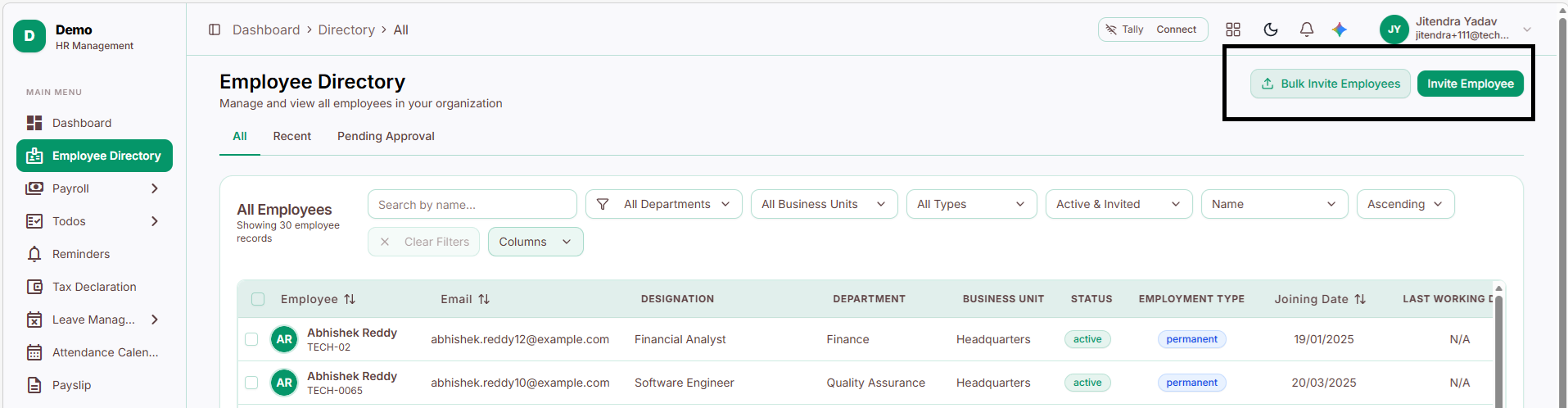
Go to Employee Directory.
Click Invite Employees.
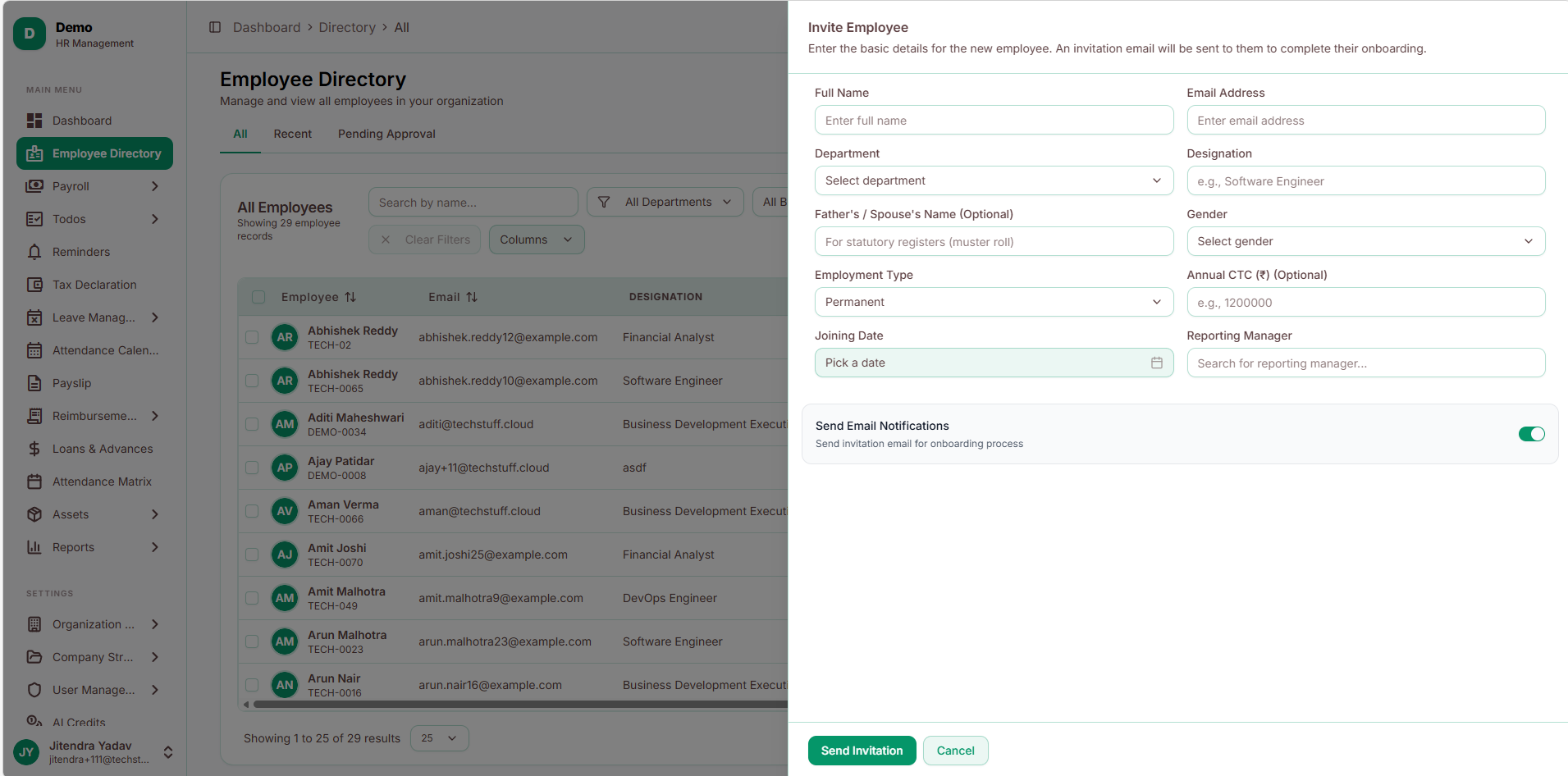
Enter the employee’s details:
Full Name
Email Address
Department
Designation
Father’s Name
Gender
Employment Type
Annual CTC
Joining Date
Reporting Manager
Double-check the email address to ensure the employee receives the invitation.
Click Send Invite to send the invitation.
(You can disable the Send Email option if you want to skip sending the invitation email to the employee.)The employee receives an email invitation to complete their profile and activate their account.
Note: Double-check the email address before sending - this is what the employee uses to activate their account, so an incorrect address may prevent them from receiving the invitation.
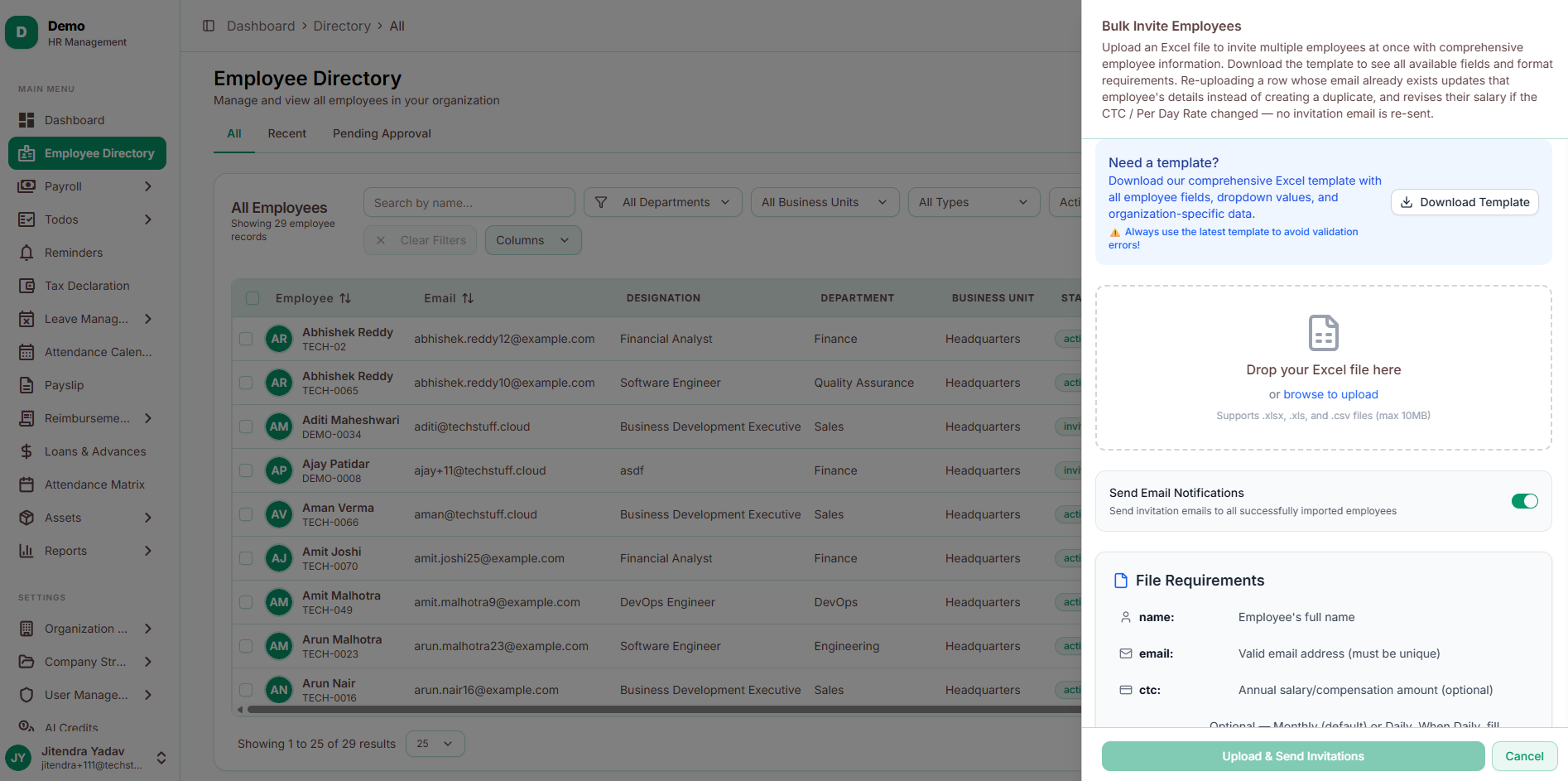
Inviting employees in bulk
Use this when onboarding several employees at once, instead of adding them one by one.
Steps
Go to Employee Directory.
Click Bulk Invite Employee.
Download the bulk upload template.
Fill in each employee’s details in the template.
Save the completed file and upload it to PrimeHR.
Review the uploaded data. PrimeHR will flag errors, such as missing names or invalid email addresses, so you can correct them before proceeding.
Click Send Invites to invite all employees whose details have passed validation.
(You can disable the Send Email option if you want to skip sending the invitation email to the employee.)
Each employee receives an invitation email to complete their profile and access PrimeHR.